Posts

Enterprise Repository
Image
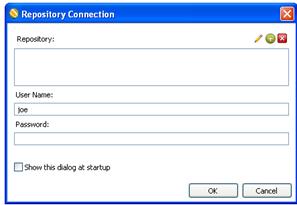
Enterprise Repository provides: • storing and managing your jobs and transformations     (version management of jobs & transformations) • history for documents allowing you to track changes, compare revisions and revert to previous versions when necessary • other feature such as enterprise security and content locking To create a connection to the Enterprise Repository:... 1. Start Data Integration and Enterprise Console servers from respective .bat files in       Program files/pentaho/servers. 2. Start Spoon, Repository Connection dialog box appears, if it doesn’t go to Tools > Repository > Connect 3. In the Repository Connection dialog box, click   (Add)   4. Select Enterprise Repository:Enterprise Repository and click OK. The Repository Configuration dialog box appears. 5. Keep the default URL. The URL used to connect to the Data Integration server is provided by default. 6. Click Test to ensure your connec...

Sorting of Student Marks & Loading in Database

Image
- Prepare excel file  - File > New > Transformation - Press Design tab in palette - Drag Input > Excel Input, Output > Table output, Transform > Sort Rows Steps onto workspace - Dbl click Excel Input - Browse for the excel file you want to provide as an input - Press Add Button - In Sheets tab select the sheet using "Get sheetnames" & select the sheet containing data - Select fields tab press "get fields from header row" to fetch all the fields from the selected sheet - press ok to close the window - Connect the all the steps by creating a hop between the steps using Shift + Drag from one step to another - Select the Sort rows step - select the field name from the dropdown list by clicking a cell of the table which appears - Select the order as Ascending > N as we want to sort the rows in descending order - Click ok to close the window - dbl click table output - In connection input the connection you want by creating a ...

Simple Transformation from a csv to Excel Output

Image
Lets start with a basic transformation to convert your comma seperated values file input to excel output Step 1: Launch kettle 4.1 Step 2: select file>new>transformation Step 3: drag input>csv input & output>csv output on the workspace Step 4: Arrange them one after another & create a hop/connection between them by holding the shift key & dragging the arrow from center of csv input step to excel output step Step 5 : double click the csv input step & configure as shown in the figure above. Choose the filenae location & select get fields button to auto retrieve fields. Step 6: double click the excel output step & give the desired path location of the new excel file which is to be created, click the fields tab & select the get fields button to retrieve all the fields currently present in the stream. Step 7: Click the run button above the workspace else Select --> Action>Run from the menu. Your file is automatically ...